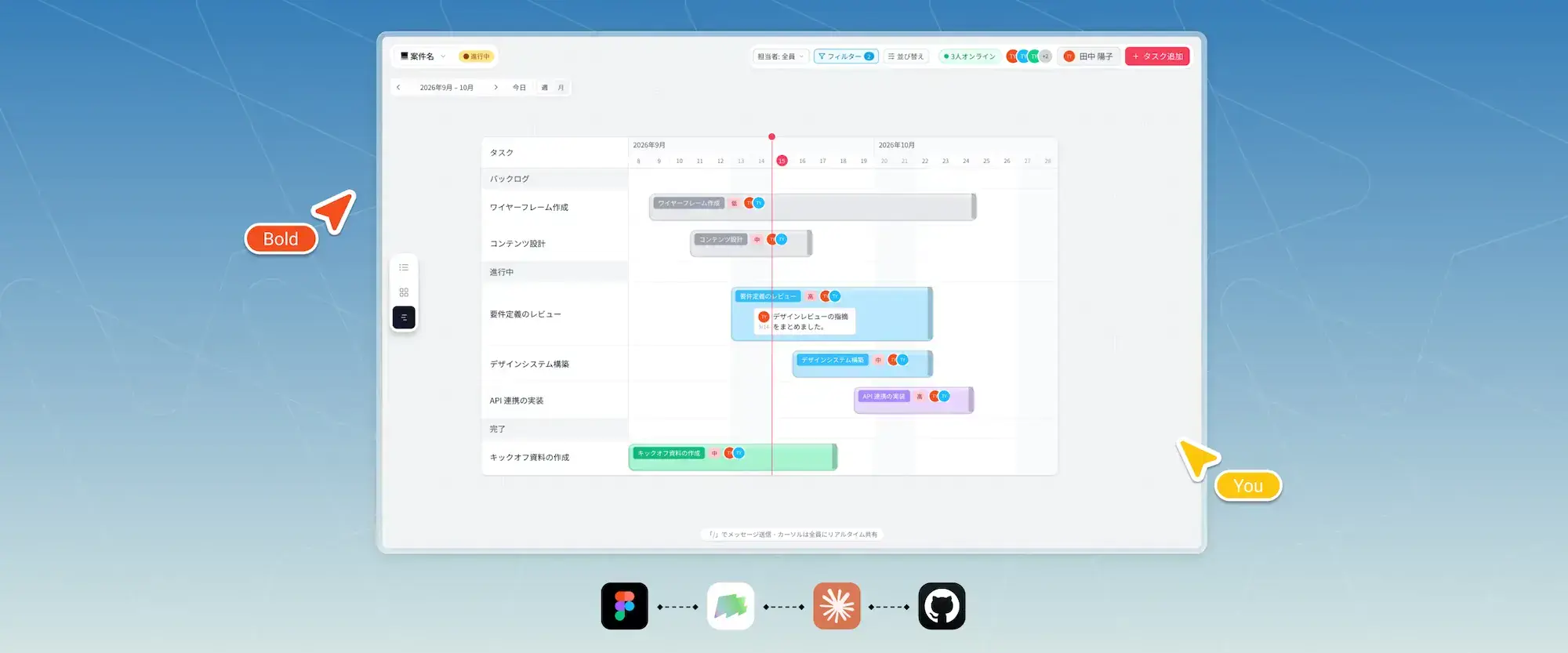
Project Timeline
AI-Native Project Management Web App
Project Timeline is our team's internal project management app. It's built around one shared visual timeline, so we plan and track every project in one place.
Context
We're a team of fewer than 10, so we have to work fast and stay flexible. Every morning we go through our active projects together and agree on priorities and next steps.
We used to spread our work across Figma, Trello, and Notion. None of them fit how we work. Each had features we didn't need, and none could show our projects the way we wanted.
Once AI coding tools got good enough, building our own tool became realistic. We decided to build an AI-native workspace around the way our team actually works.
Timeline
June 2026 - August 2026
(2 months)
Team
Coworkers, Project Director and Designer (me)
Tech Stack
Figma, shadcn/ui, Claude, GitHub, Magic Patterns, Supabase, Vercel
Design Principle
User-Centered Design
My Role
Research, Design System, Web App Design, Project Direction
Ownership
I led the project end to end, from initial research and product definition through design, development, and deployment.
Challenge
We managed projects in Notion and Trello for years, and it kept getting harder to keep up. Both tools did far more than we needed, and the extra features got in the way.
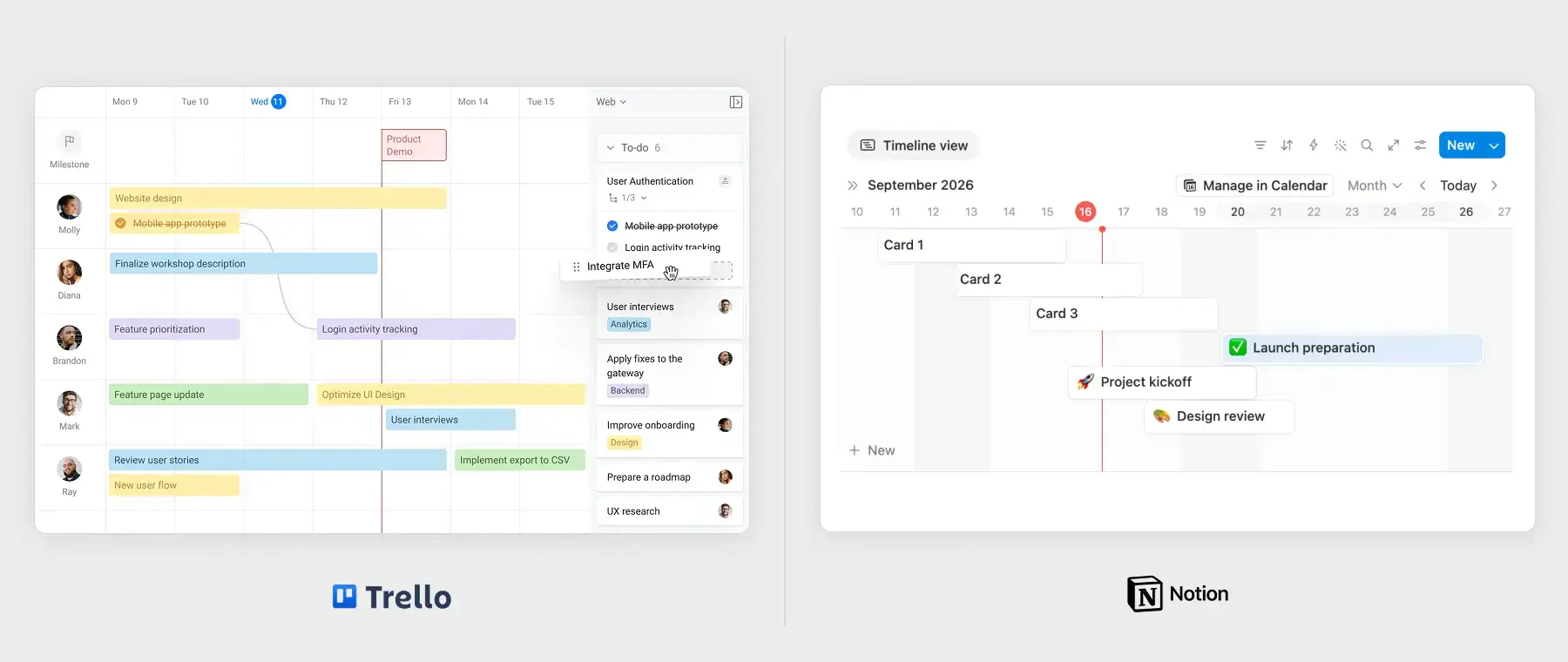
Trello is built around Kanban. It has a timeline view, but it wasn't flexible enough for how we plan.Notion is very customizable, but its layout system made it hard to size and place things freely.
We needed something simpler that fit how we work.
First Iteration
We looked for something lighter and moved to FigJam.
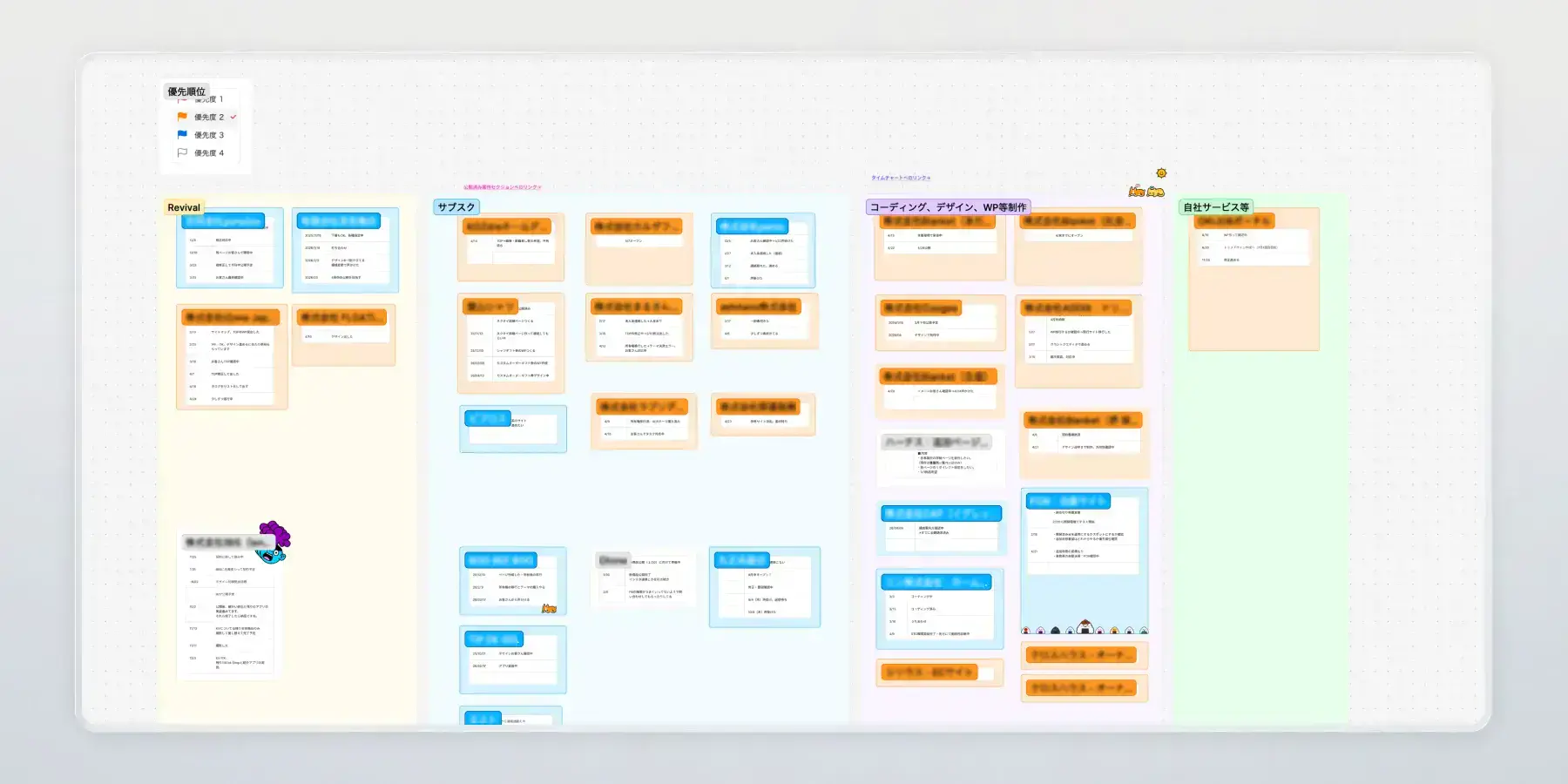
The open canvas felt right from day one. We could put information and ideas wherever they made sense.
We built our own project management setup on top of FigJam and made it our main workspace.
Problems
Six months in, we hit FigJam's limits.
The free-form canvas was great, but a lot of the project management features we needed weren't there. The bigger problem: FigJam isn't a project management tool, so everything we put in it was shapes on a canvas, not project data we could use.
By then, AI coding tools had gotten much better. We realized we could build the tool ourselves, shaped around exactly how we work.
Design Goal
We wanted an internal project management app with AI built into the development workflow from day one.
AI tools change fast, so the architecture and design workflow had to keep up as they changed.
We worked from three principles:
- AI-assisted development: Build the app with Claude.
- A scalable design system: Reusable components and design tokens in Figma.
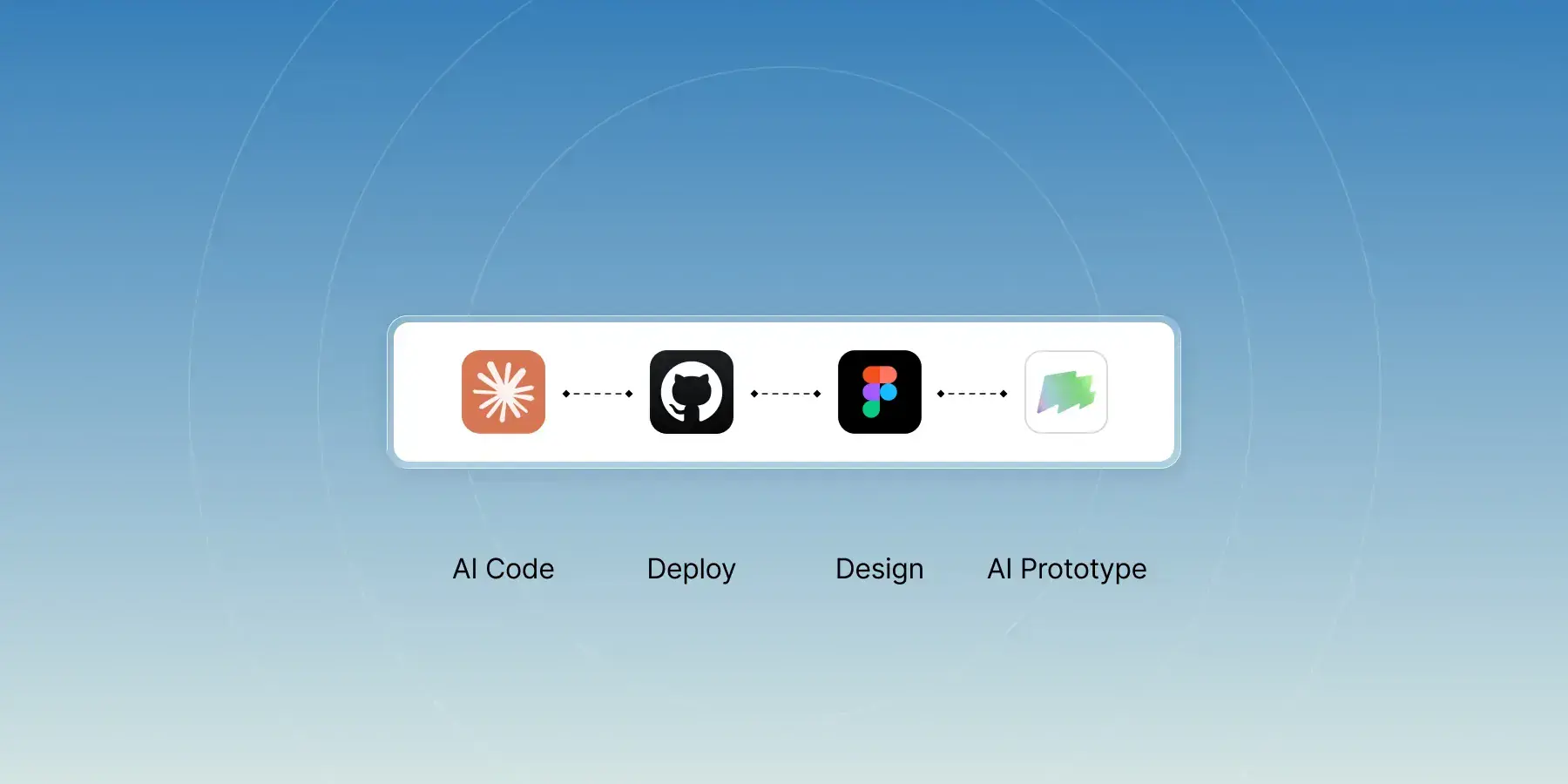
- A repeatable product workflow: One process for designing, prototyping, building, and iterating on features with Claude and Magic Patterns.
Design & Development Process
Building the first version was easier than we expected.
We gave Claude the product concept, requirements, and features we wanted, and it generated the first version of the app.
Once the app worked, we reverse-engineered its UI into Figma as design tokens and reusable components. Those became the base of our design system, so new features would look consistent.
For new features, we tried something different:
Prototype first, design later.
Since we built the app for ourselves, we could move fast and test ideas right in the product.
We started with interactive prototypes in Claude Design but ran into its limits. Then we moved to Magic Patterns, which let us generate several design directions and compare them side by side.
Once we picked a direction, we tested the feature on a local copy of the app before deploying it to production.
AI-Assisted Workflow
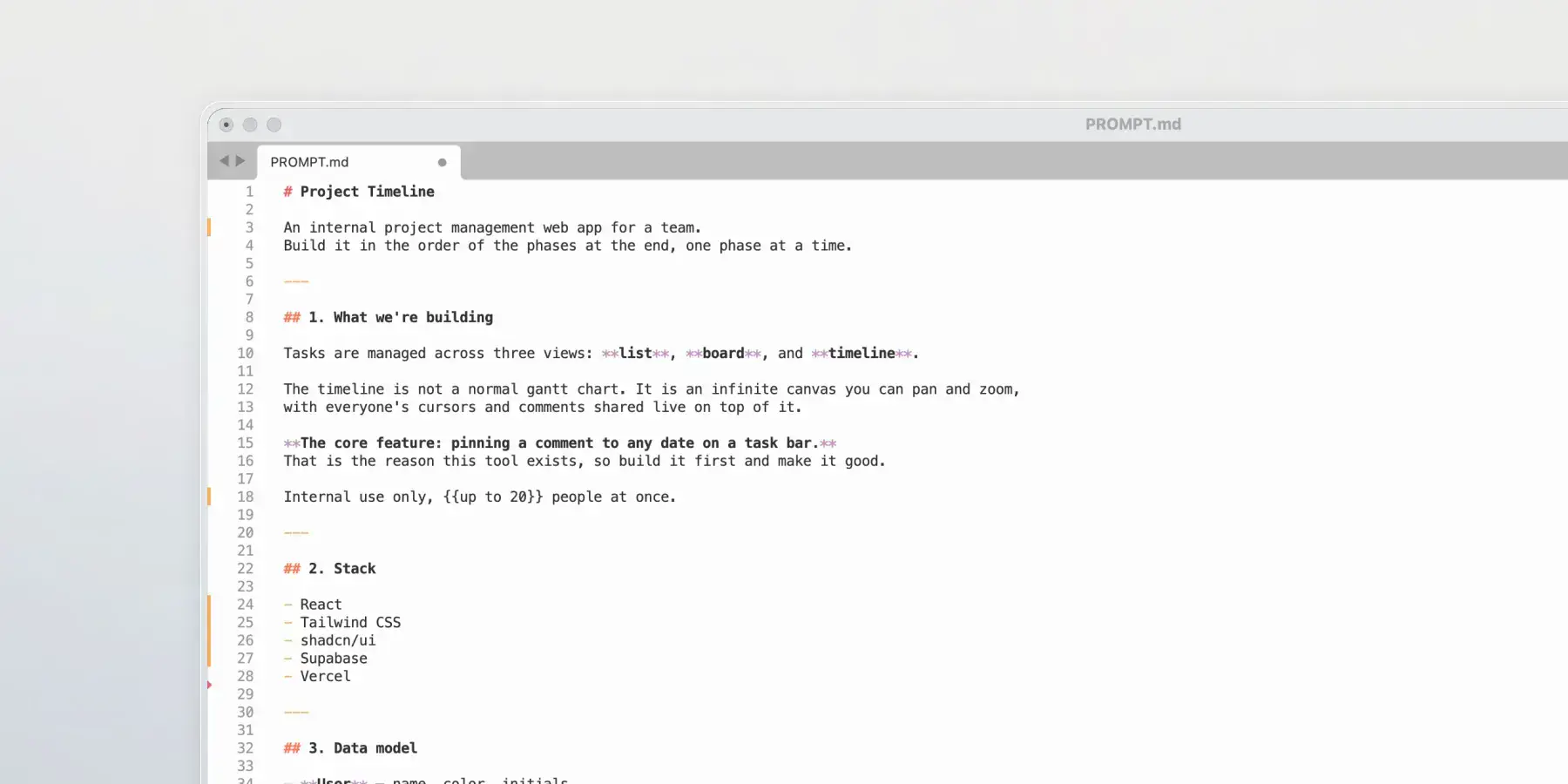
First we put our requirements, ideas, and project context into one README.md file. That file is Claude's single source of truth for the project.
Workflow with Claude1. Generate the first prototype
Claude generates the first version of the app. We run it locally to check that the core features work.
We used Claude Opus 5 (Max) for this step.2. Connect the infrastructure
We connect the prototype to Vercel and Supabase.3. Review security
Claude sets up the first layer of security, then we do a final server-side review.4. Iterate
We keep improving the product as requirements, feedback, and new ideas come in.
Key Features
Infinite Canvas
A canvas with no fixed layout. Put project info and workflows wherever you want.
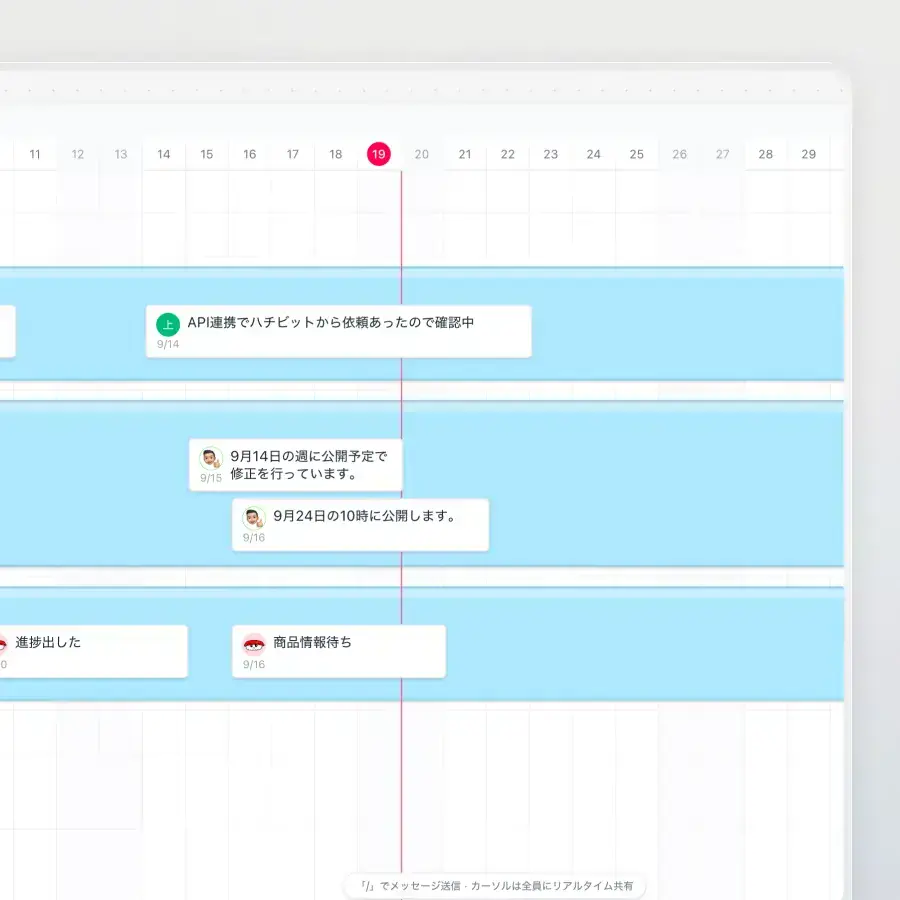
Timeline Comments
Comments sit right on tasks in the timeline, so updates show up where they belong. Double-click to add one.
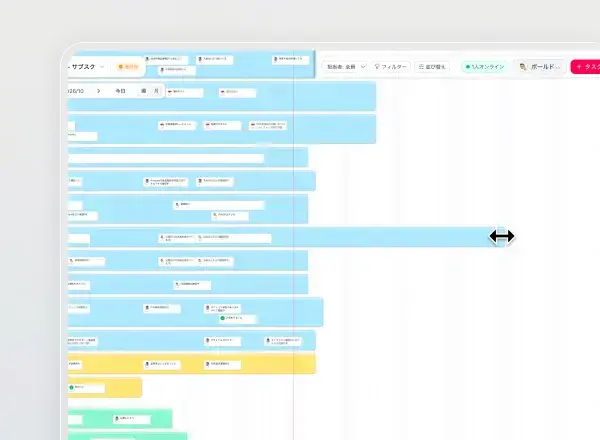
Drag to Reschedule Tasks
Drag a task along the timeline to change its dates and deadline.
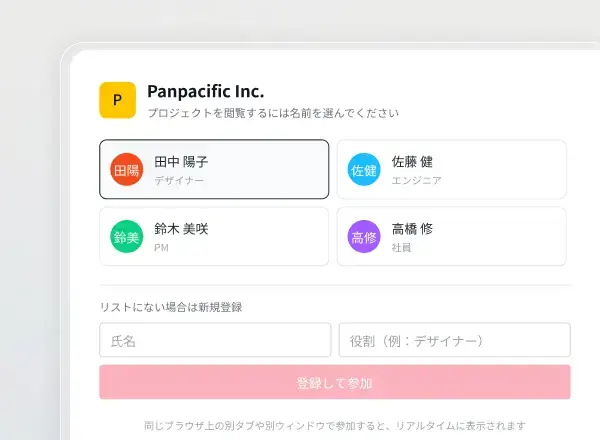
Simple Sign-In
Users sign in with the Gmail address their admin gave them. Login and sign-up are one step, so getting started is quick.
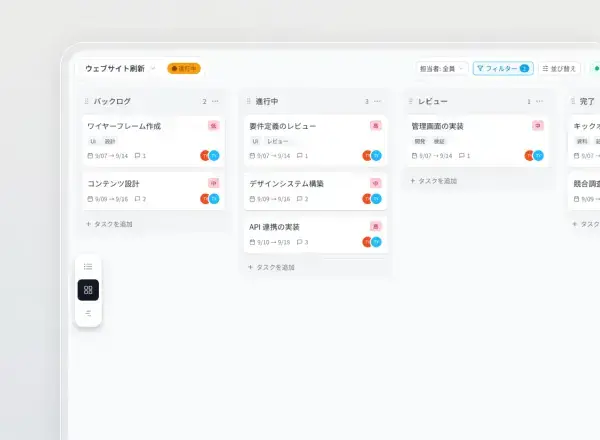
Multiple Views
Users can switch between Timeline, Board, and List views depending on how they want to plan and review their projects.
Building New Features with a Shared Design System
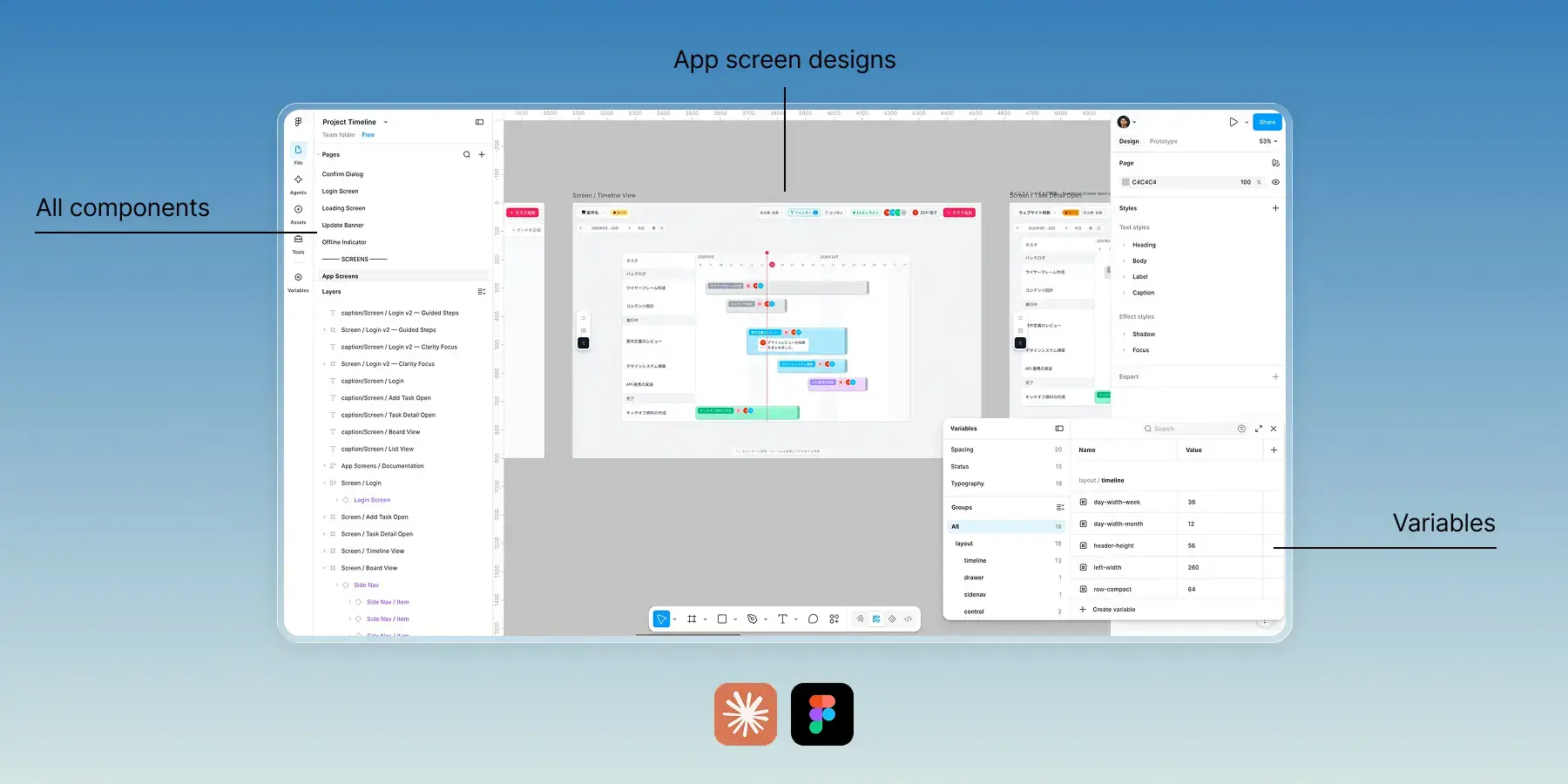
Claude generates the app's design tokens and UI components straight into Figma, where we can edit and customize every component and variable.
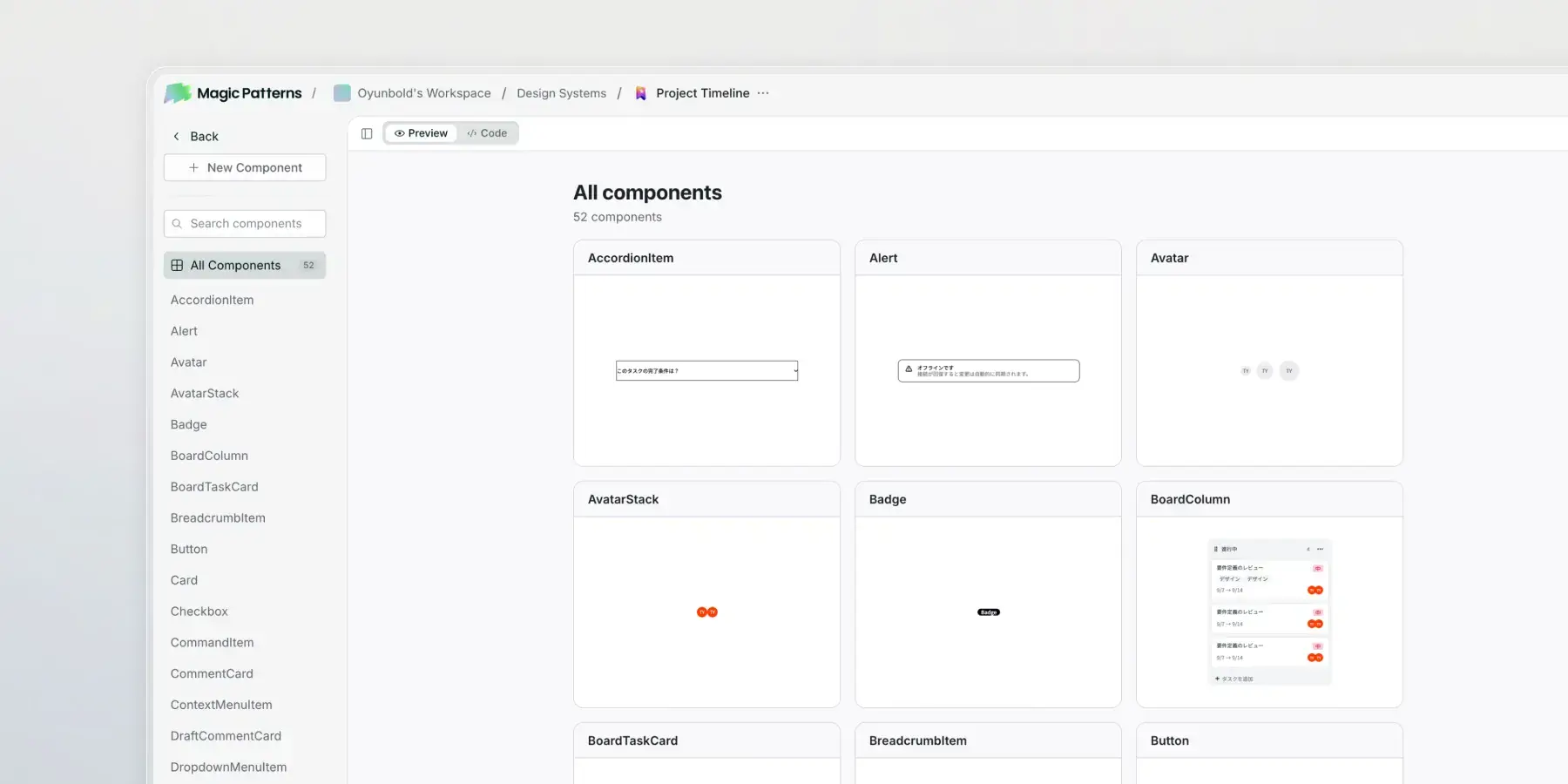
We then import those components, tokens, and design rules into Magic Patterns, so the new design directions it generates stay consistent with the existing system.
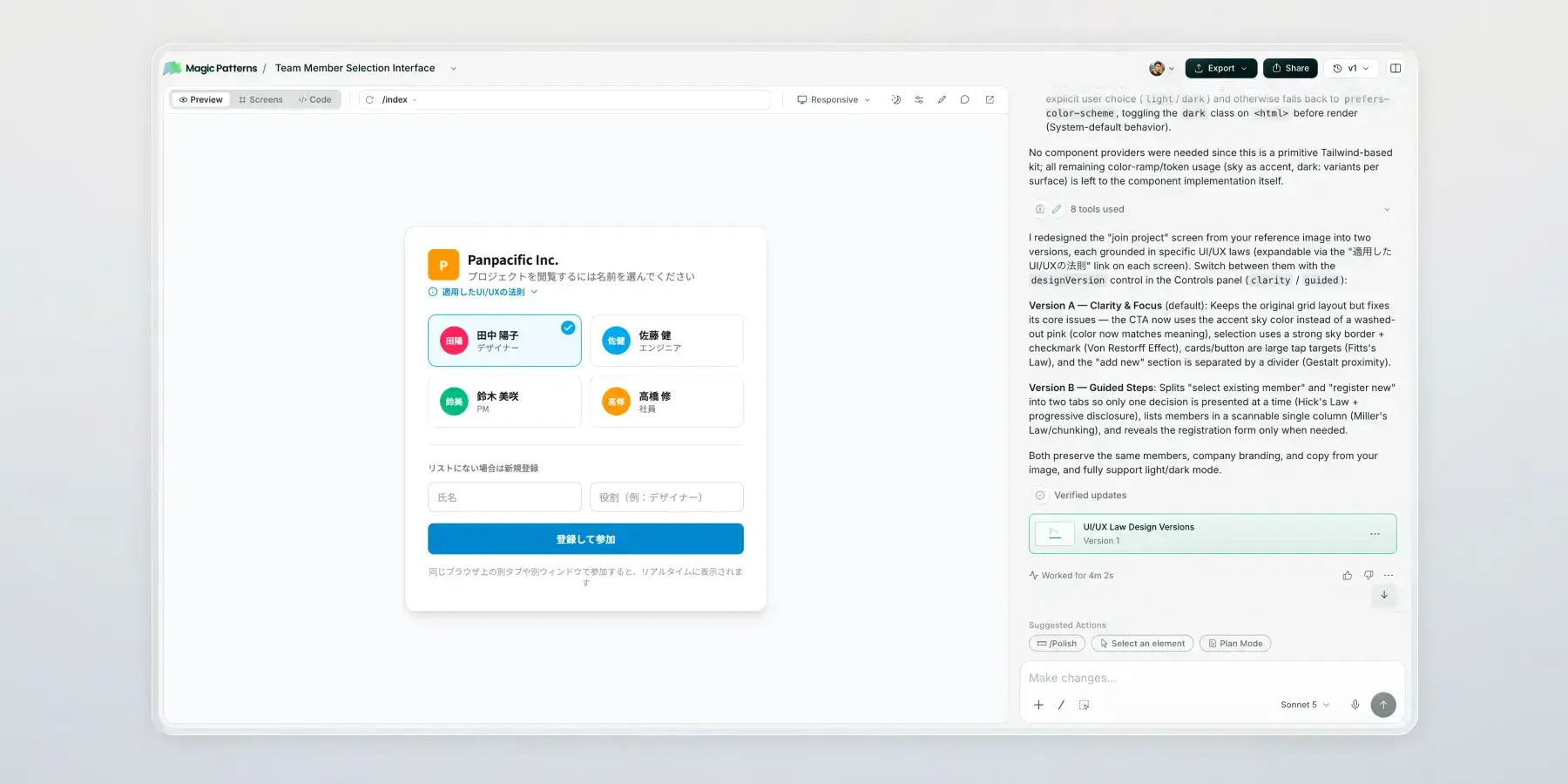
We prototype new ideas in Magic Patterns, pick and polish one direction, then give that code to Claude as context.
The finished feature goes into the app and gets deployed.
Key Takeaways
This project let me try a new way of building products, from concept and design to AI-assisted development and deployment.
Using AI to write the app was the easy part. The interesting part was a workflow where the design system, prototypes, code, and iteration all feed into each other.
The app now runs internally, and the biggest win is speed. When someone has an idea for a feature, we can go from concept to a tested build much faster than before.